


iOS 26 is here and here's how it works
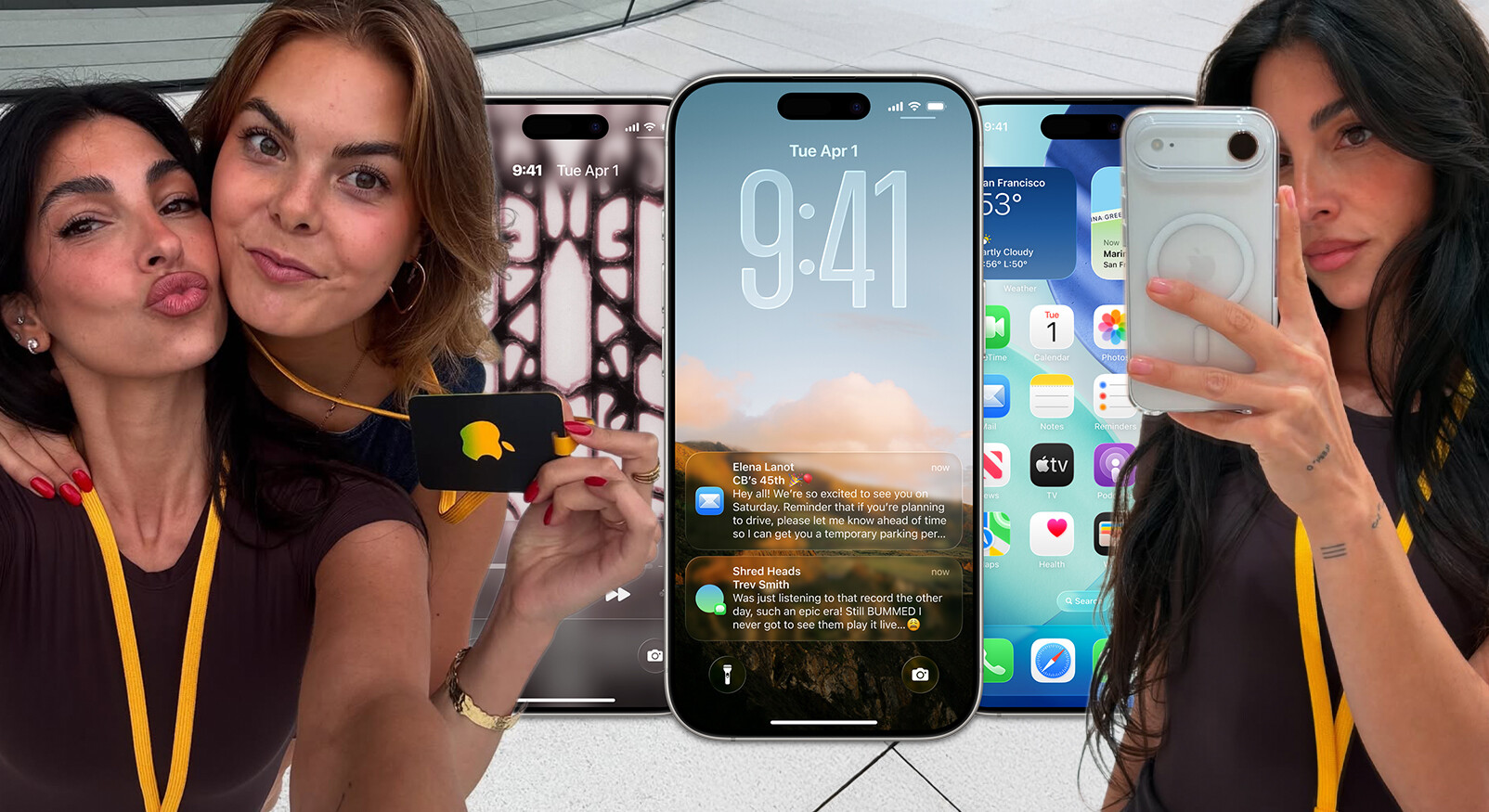
Yes, people. There is yet another new Apple update. And not just any update, but a really big one: iOS 26. How did we suddenly get to 26? Wasn't it just yesterday that we had to download iOS 17.1? …Okay, time flies, but let's stick to the point: there is a new update. What can you do with it? Why is this update different from all the others? Just hang on, we have all the ins and outs figured out for you.
All iOS 26 features in a nutshell
1. Liquid Glass
This is the biggest update you will notice. This revamped design, better known as Liquid Glass, replaces the existing layout of your phone. When you now open the control panel in the dead of night with one eye closed to turn on your flashlight, you see a blurred version of your home screen (or the app you are currently using). All functions are now rounded with a darkened transparent edge. That familiar look is about to change. You get a glassy, transparent image that looks like your phone is frozen in the Ice Age. Not only does the control panel look like this, but also the other windows: the notification when you receive a message, the icons of the apps on your home page become transparent AND your lock screen.
With this glass feature, you can now personalize your icons and widgets: you can adjust the color AND transparency. Say hello to your completely pink iPhone.
@sunnytechy iOS 26 is now available for everyone to download! You’ll instantly notice the stunning new Liquid Glass design, I love how good it looks in both Light and Dark mode. Apple really nailed the little details this year, and your iPhone is about to feel completely new. I’ll be covering more of the best new features in a series of reels, so make sure to **hit follow** to stay updated! apple #apple #ios26 #iphoneusers #iphone17 #iphone17pro
2. Bounce effect
When you swipe up the control panel, there is a ‘bounce’ effect on the movement you make. The icons really seem to bounce away like a ball.
@itricksmark A small but interesting detail in iOS 26: Home Screen icons bounce more if you swipe up faster 👀 Like and follow for more tips and tricks!! #apple #iphonetricks #newiphoneupdate #trend #fy #ios26 #newios
3. Immersive music player
Listening to music gets a whole new level with the immersive music player. Here you no longer just see the ‘boring’ cover photo of the album you are listening to, but a moving 3D version. You do need to adjust this in the music settings to ‘animated albums’. There is a catch: it only works (so far) with Apple Music, and not with all songs. Just wait and see how that turns out, unless you have Apple Music, lucky you.
@itricksmark 🚨 The NEW iPhone iOS 26 Music Player just changed the game… 🎶📱🤯 iiOS26iiPhoneUpdateAAppleTechTok
4. The camera app
There are a few things different about the iOS 26 camera. When you now swipe between the modes in which you want to film or photograph – such as film, video, or portrait mode – the phone responds faster and smoother to this movement. Additionally, you see a glass bubble around the correct mode while moving your finger.
In the top left, you can now click on a ‘dropdown’ menu where you can select whether you want to take photos and videos in HD, 4K, or other settings. There is also a second ‘dropdown’ menu at the bottom with extra features like flash, live photos, a timer, shutter speed, and filters. This is again in the same glass look as the rest of the phone. Oh, and your phone can even give you a notification if your lens is dirty. You do need to turn this on in the settings.
@itsjackington The Camera App in iOS 26 has a BRAND NEW look! 📱📸 Link in the Bio to my full video with my Top 5 new iOS 26 Features! #ios26 #iphone #iphone17 #apple #camera #cameraapp #ios #tech #yt #jackington
5. The lock screen
Of course, there is another change: the lock screen. The icons for the flashlight and camera in the bottom right and bottom left of your screen have been slightly adjusted; there is also the glass effect around them. Furthermore, you can customize everything about your background: you can now place the clock above or below and even drag it to the size you want.
In addition, there is a new upgrade: the 3D effect. You can now make any background photo animated by adjusting the photo settings and adding it to your screen. That's definitely something you need to see to understand, but it's actually simple: first you adjust the settings of your photo. Then click on the hexagon button in the bottom right while editing your lock screen and your phone does all the work. It looks just like you have one of those moving photos from Harry Potter on your phone.
@sunnytechy Your iPhone Lock Screen just got a major upgrade with the new iOS 26 Lock Screen! From the stunning Liquid Glass design to customizable clock sizes and widget placements, this update changes the way your iPhone looks and feels. The new Spatial Scenes feature even turns your 2D wallpapers into immersive 3D images, while Apple Music albums can now animate beautifully on the Lock Screen. Plus, iOS 26 comes with new wallpapers and dynamic options to match your style.- If you love exploring hidden iOS 26 features, make sure to save this post, share it with your friends, and follow for more iPhone tips and tricks! #ios26 #iphone17 #iphone17pro #ipphonetips #appletips
What if you find that glass effect terrible?
Well, unfortunately, there are people online who get completely creeped out by this update. You can solve this, sort of. You can go to the settings Accessibility and then to Display and Text Size. Here you can choose to make it ‘less transparent’. This ensures that your control panel is a bit easier to read, for example. You can also choose to ‘increase the contrast’, making the background even darker and the white text more readable.
You can even choose to use the original icons of the apps, so the look is less ‘glass’. Look, you can't really make that glass effect disappear, but you can make it more comfortable for yourself.
iOS 26: To-do list hack
Are your notes also full of to-do lists? At the bottom a shopping list from last week, at the top a checklist with work deadlines, and somewhere in the middle a list of clothes you still need to order. Yes, you keep making lists but can't see the forest for the trees? Then this hack is for you.
Due to iOS 26 you can now create a to-do list with widgets, right on your home screen. No more scrolling through long notes to find something. How do you do that? Well, simple: first go to the app Reminders. Click the plus icon in the top right next to the search function. There you click on iCloud and create a list. Choose your own colors, emojis, and name. Do this for each day of the week (combine Saturday and Sunday).
Then open a blank screen. Here you will add all the reminder widgets. Choose the smallest widget so that six fit side by side. Finally, click on the widget and select the correct list. Okay, now you have the widgets. And then? You click on each widget, and then you go directly to a notepad. Here you can write down as many things as you want and they will appear in the widget on your home screen. You can even check them off here. How handy, right? I'm definitely going to use it. Did this go too fast? (Sorry, sometimes I can be a bit unclear.) Watch it back here.
So you can do a lot with this new update. The biggest theme is personalizing your iPhone. So, I already know what I'm going to do as soon as my phone is updated: scroll for hours on Pinterest for the best inspo and copy that. Sorry not sorry.
Image:instagram|annanooshin


